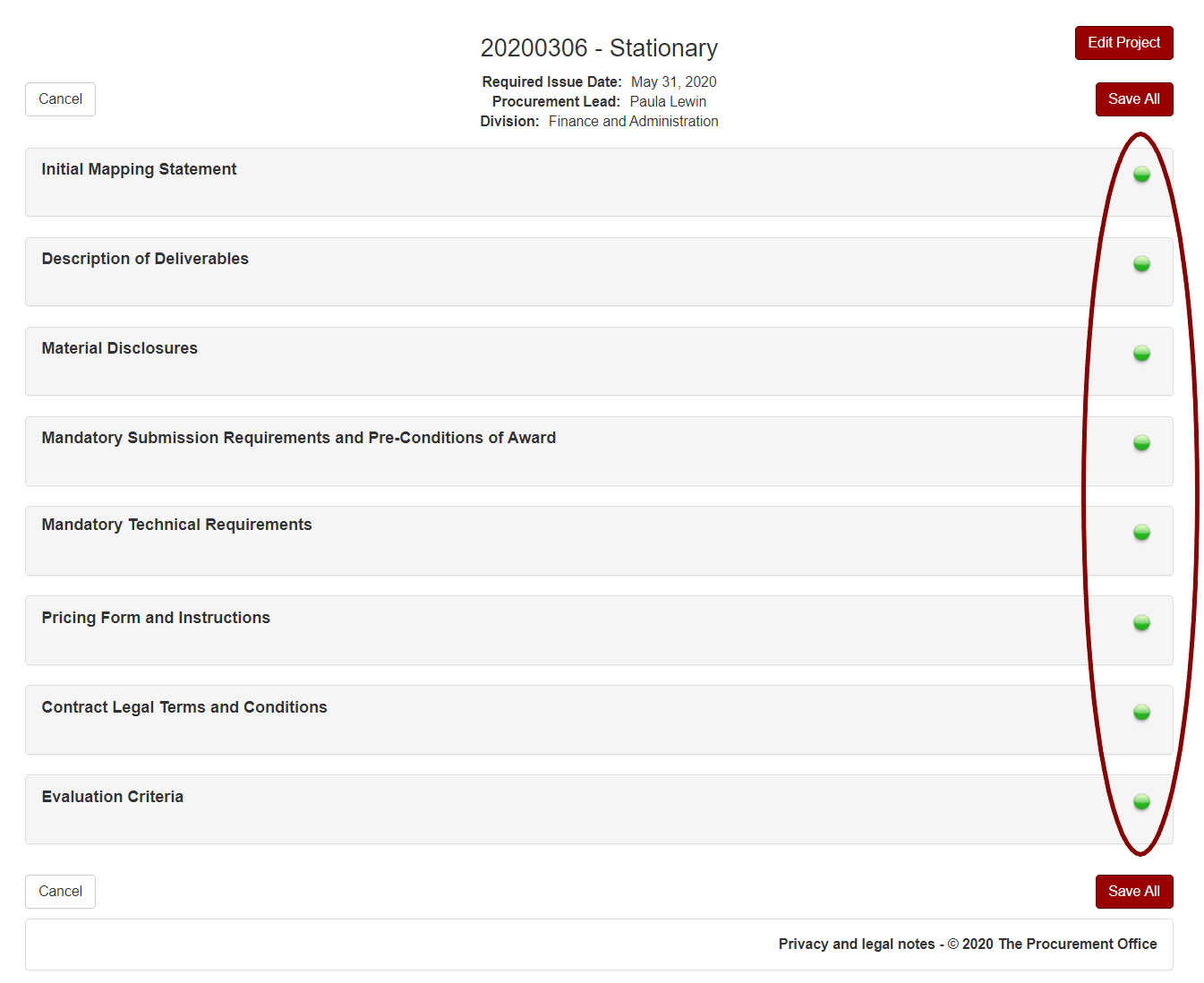
To generate your finalized RFX documents, ensure all drafting fields on the Drafters page are marked as complete:
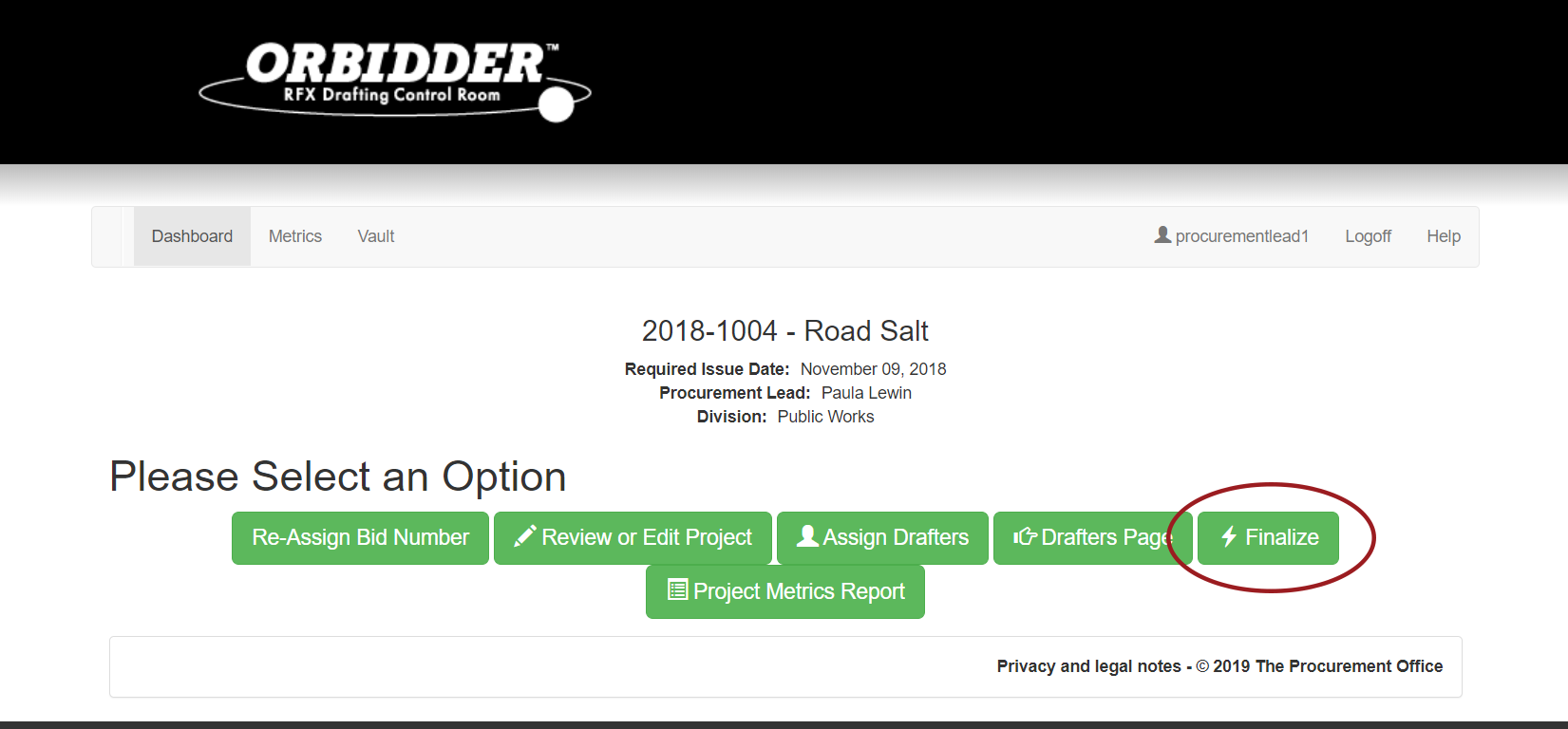
When all drafting fields have been marked as complete on the Drafters Page, the Procurement Lead or Head of Procurement can generate the finalized document by clicking the Finalize button:
Timetable Completion
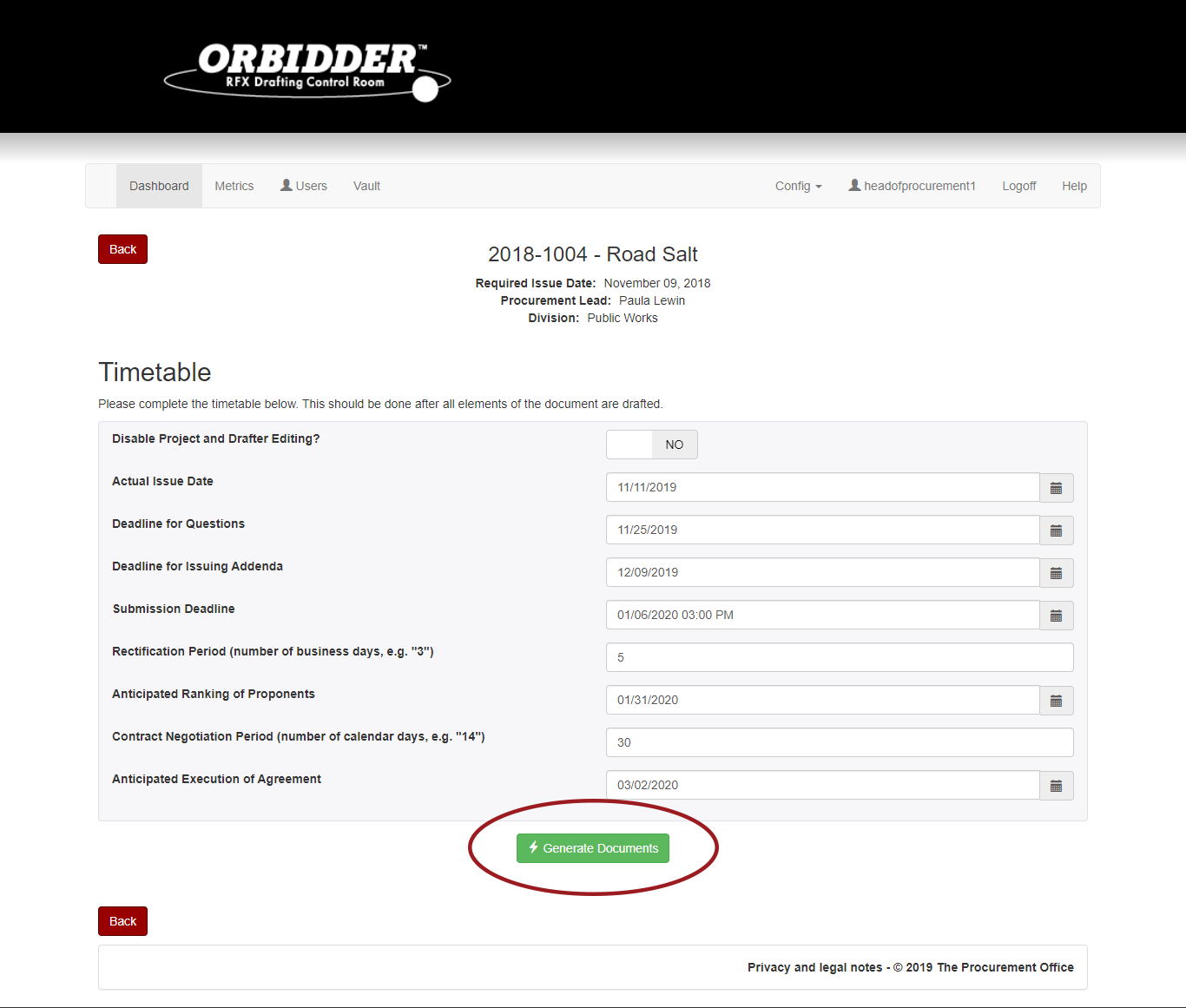
Heads of Procurement and Procurement Leads with be prompted to input the dates and information required on the Timetable page. Users should note that this is not required to generate the finalized RFX documents. Once the Timetable is complete, users then click on the Generate Documents button:
Downloading RFX Documents
On the Download page, click the Download RFX button:
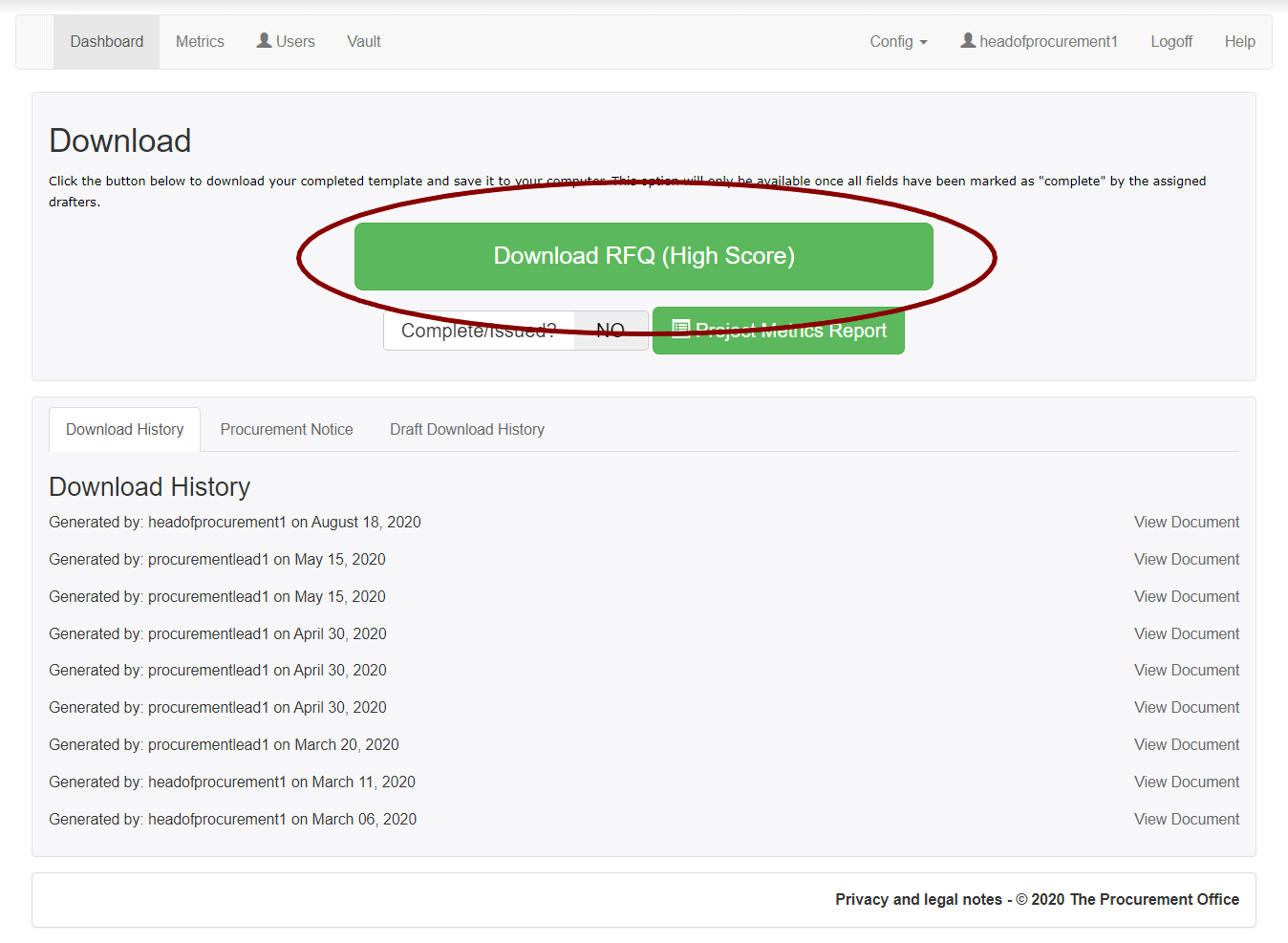
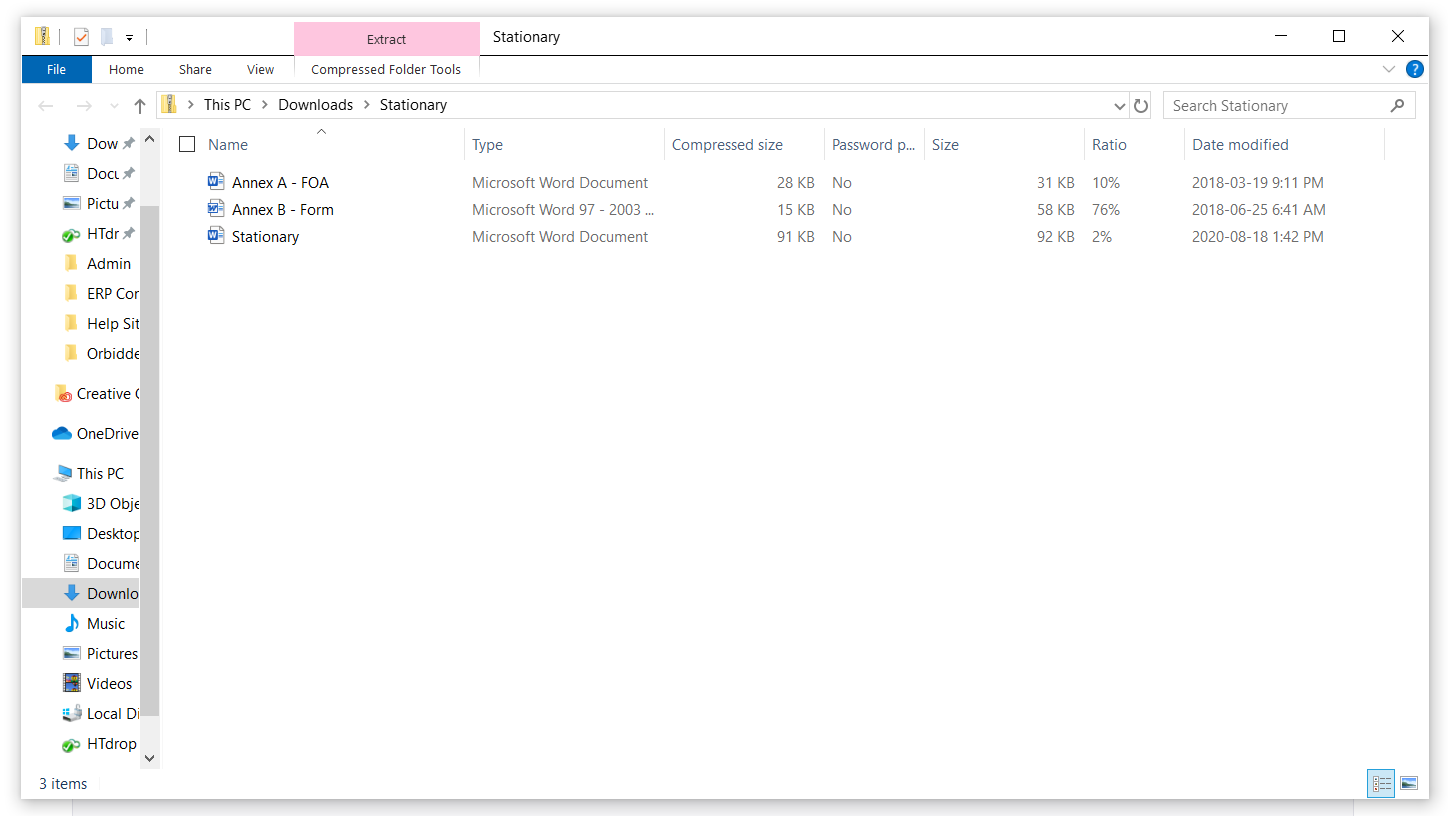
All of the RFX document files will download in a zip file, including the RFX document and all of the attachments that the Drafters included in the RFX drafting process, which have been renamed with the prefix ‘Annex –‘ according to their placement in the RFX document: