Content may be added to the Snippet Library by the Head of Procurement, Procurement Leads, and Client Administrators.
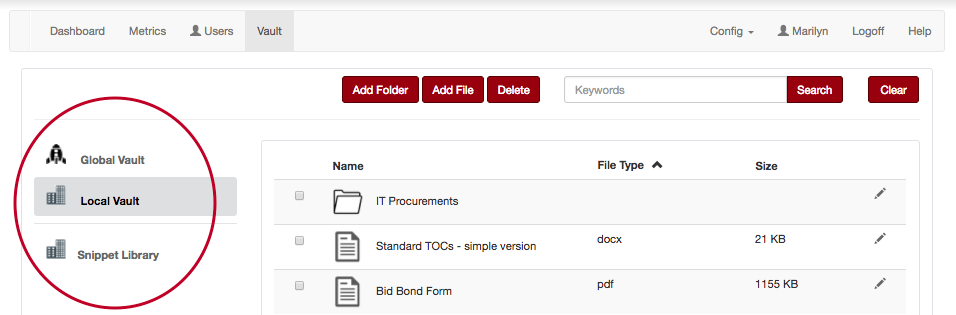
To access the Snippet Library, select “Vault” from the main menu bar:

Then select “Snippet Library” from the options on the left:
You will be taken to a library of folders that correspond with the different categories of editable content in Orbidder:
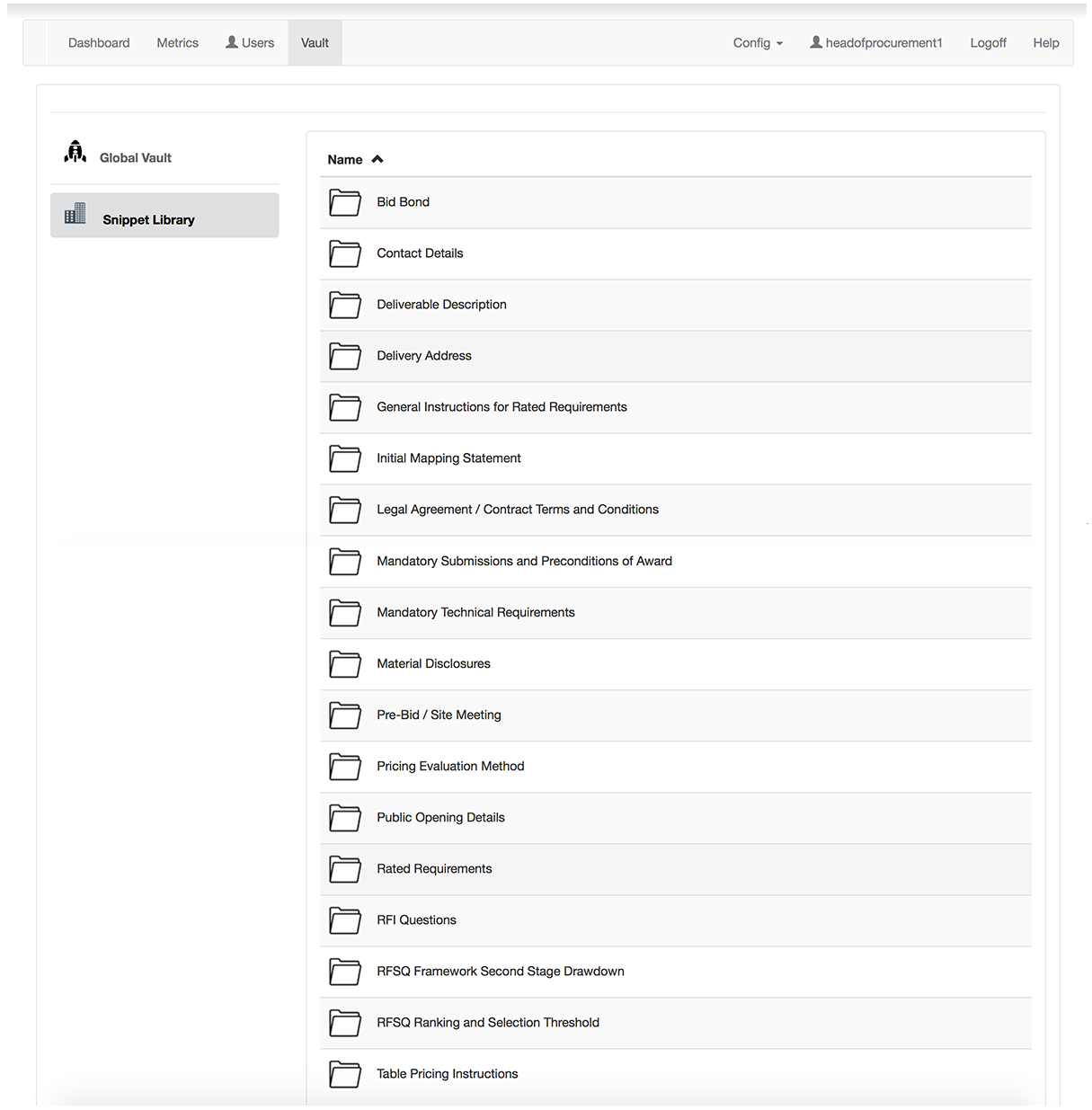
Please note: The folders in the Snippet Library are fixed and cannot be changed. This is because they correspond with specific drafting fields within Orbidder.
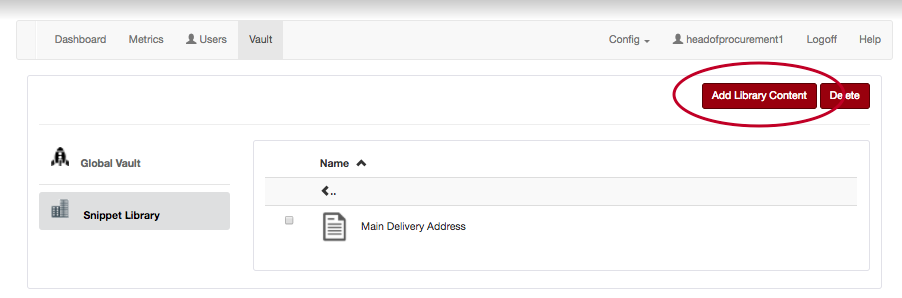
Select the folder you would like to add content to, then click “Add Library Content”:
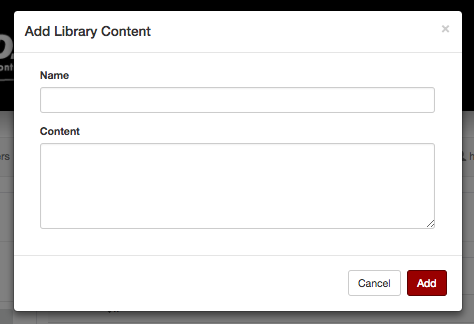
A pop-up window will open that will allow you to add and save a snippet:
Drafting Tips
- Each snippet consists of a name and content.
- The name will not appear in your document when the snippet is selected. It should be used to identify the snippet to your users, so you should include sufficient detail for that purpose, e.g. “Pre-Bid Meeting (optional, webinar only)”.
- The content will be inserted into the drafting field and can be edited by the drafter. If there is language that should be changed based on the type of procurement (e.g. “Bidder/Proponent/Respondent”), add notes to your drafters to remind them to make the necessary changes.